
Install the trial and connect a Microsoft 365 mailbox.
ONLY FOR MICROSOFT 365 · EXCHANGE
Feature · Microsoft 365
Change the status of every email, right in Outlook
For Microsoft 365 and Exchange mailboxes, Automatic Email Manager changes the email on the server: it adds a tag such as [Done] to the subject and assigns Outlook categories. The whole team sees what has been processed, without opening anything.
v10.02.1124 · Windows 11, 10, Server · no registration
Prepend, append or replace text
Apply categories
All M365 email
Short answer
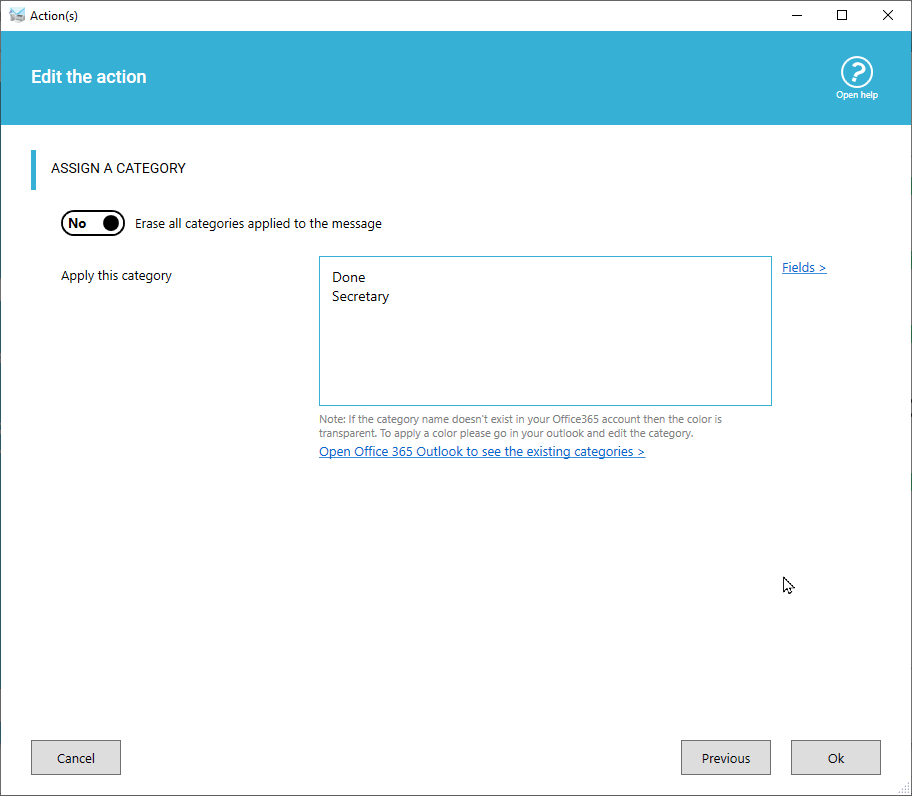
Two actions for Microsoft 365 and Exchange mailboxes. The first changes the subject on the server: prepend text, append text, or replace a piece of text (an empty replacement removes it). The second assigns one or more Outlook categories, with the option to remove the existing ones first.
Updated 11/24/2026 · Tested with v10.02.1124
Why use it
Status without opening
A [Done] tag or a coloured category shows what was processed, in the message list.
Clear for the whole team
In a shared mailbox, everyone sees the same status, in Outlook and on the web.
Outlook's best organiser
Categories sort, filter and search mail, and AEM applies them as emails arrive.
Examples
Subject and category, set on the server
SUBJECT · PREPEND
Before
Email is Printed + Saved
Prepend
Then add [Done] in subject
Incoming email
Invoice 1043
invoice-1043.pdfNew subject on the server
[Done] Invoice 1043
SUBJECT · APPEND
Before
Print · Send notification to Teams
Append
Order #[OrderNumber]
Incoming email
Request from the website
Order #5512: can I change the delivery address?
New subject on the server
Request from the website · Order: 5512
SUBJECT · REPLACE
Search
[EXTERNAL]
Replace with
(empty: removes the text)
Incoming email
[EXTERNAL] Meeting notes
Please find the notes of today's meeting.
New subject on the server
Meeting notes
ASSIGN CATEGORIES
Actual categories
Printed · Accounting
Option
Remove all existing categories
Incoming email
Printed Accounting Invoice 1044invoice-1044.pdf
Categories in Outlook
Invoice 1044
How it works
Process the email. Then label it.
Add the subject or category action at the end of a scenario. Conditions decide which emails get which label: subject, sender, recipients, attachment name, date and more.
1
Email arrives
in Microsoft 365 or Exchange
2
Your actions
print, save, reply…
3
Tag it
subject and categories
Prepend
A status before the subject
[Done] Invoice 1043
Append
A reference after it
Request · Order 5512
Replace
Remove noise
[EXTERNAL] → (empty)
Categories
Coloured labels
Printed · Accounting
Two actions
Subject and category, side by side
Change the subject
On the mail server
| Prepend | Adds text before the subject |
|---|---|
| Append | Adds text at the end of the subject |
| Replace | Finds a text and replaces it |
| Remove | Replace with nothing |
Assign categories
Outlook categories
| Categories | One or more, one per line |
|---|---|
| Clean first | Option to remove all existing categories |
| Where they show | Outlook app and Outlook on the web |
| Mailboxes | Microsoft 365 and Exchange only |
Ideas
How teams label their mail
Shared mailboxes
Everyone sees what is done
Processed emails get a [Done] tag and a category, for the whole team.
Accounting
Invoices sorted by category
Each supplier invoice gets the Accounting category, ready to filter.
Customer service
A reference in the subject
The order number is appended to the subject, so searches find it.
IT
Cleaner subjects
External warnings are removed from the subject of trusted partners' emails.
Customers
Set up once, then forgotten
Subjects and categories are changed by the Windows service, on your Microsoft 365 or Exchange mailbox.
“Great Program, Great support, and does what it says!”
“Great product, just leave running in the background and that it, been using this program for a few years now.”
“Lots of features, pulls emails and does actions (print, move files, respond) very fast.”
Which mailboxes are supported?+
Microsoft 365 and Exchange only. For other mailboxes, use the flag actions: read, answered, follow-up.
Can I remove text from the subject?+
Yes. Use Replace and leave the replacement empty.
Can I set several categories?+
Yes. Enter one category per line. You can also remove all existing categories first.
Categories do not appear. Why?+
Administrators can disable categories with a group policy. Check with your administrator.
Where do the categories show?+
In the Outlook app and in Outlook on the web.
Tutorials